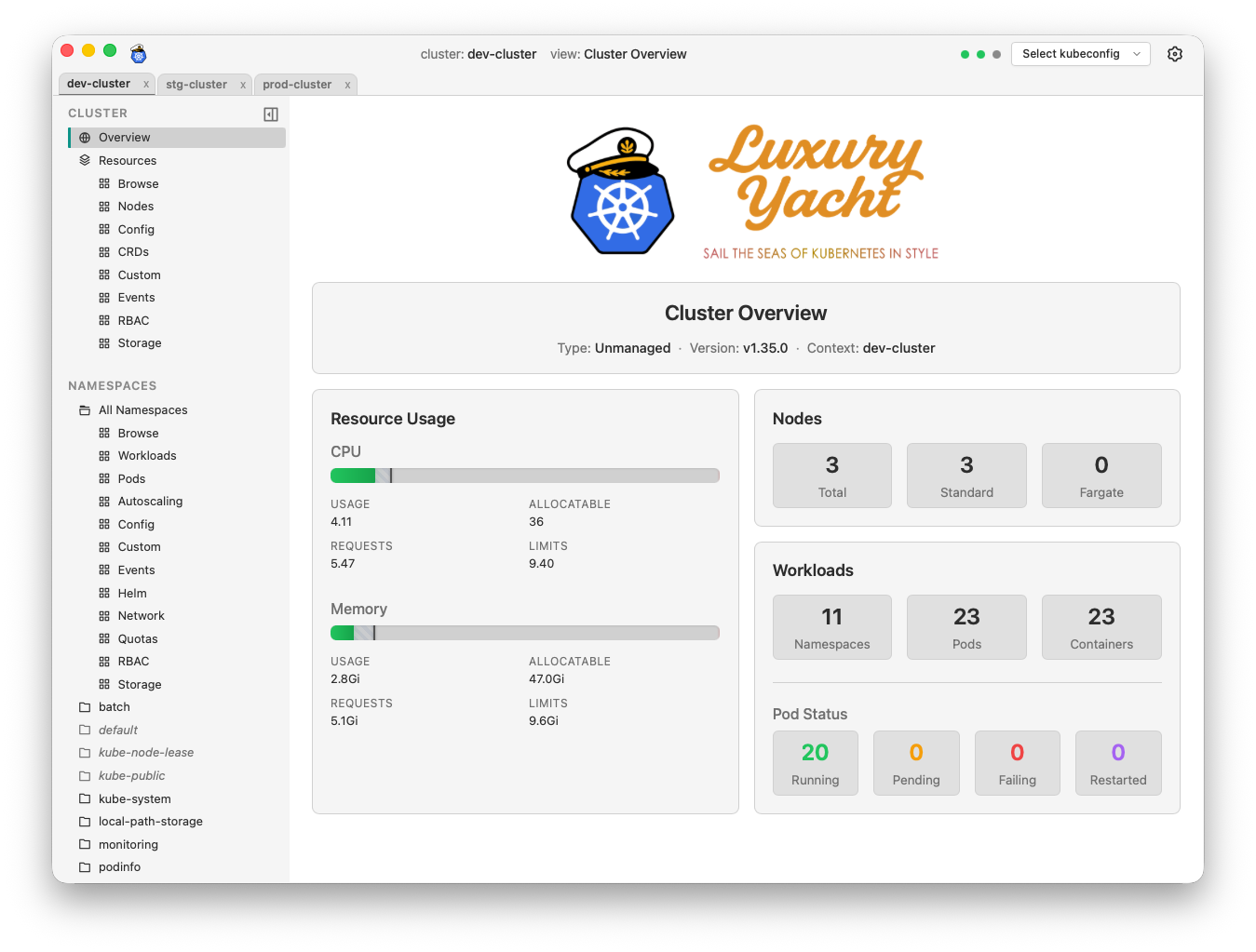
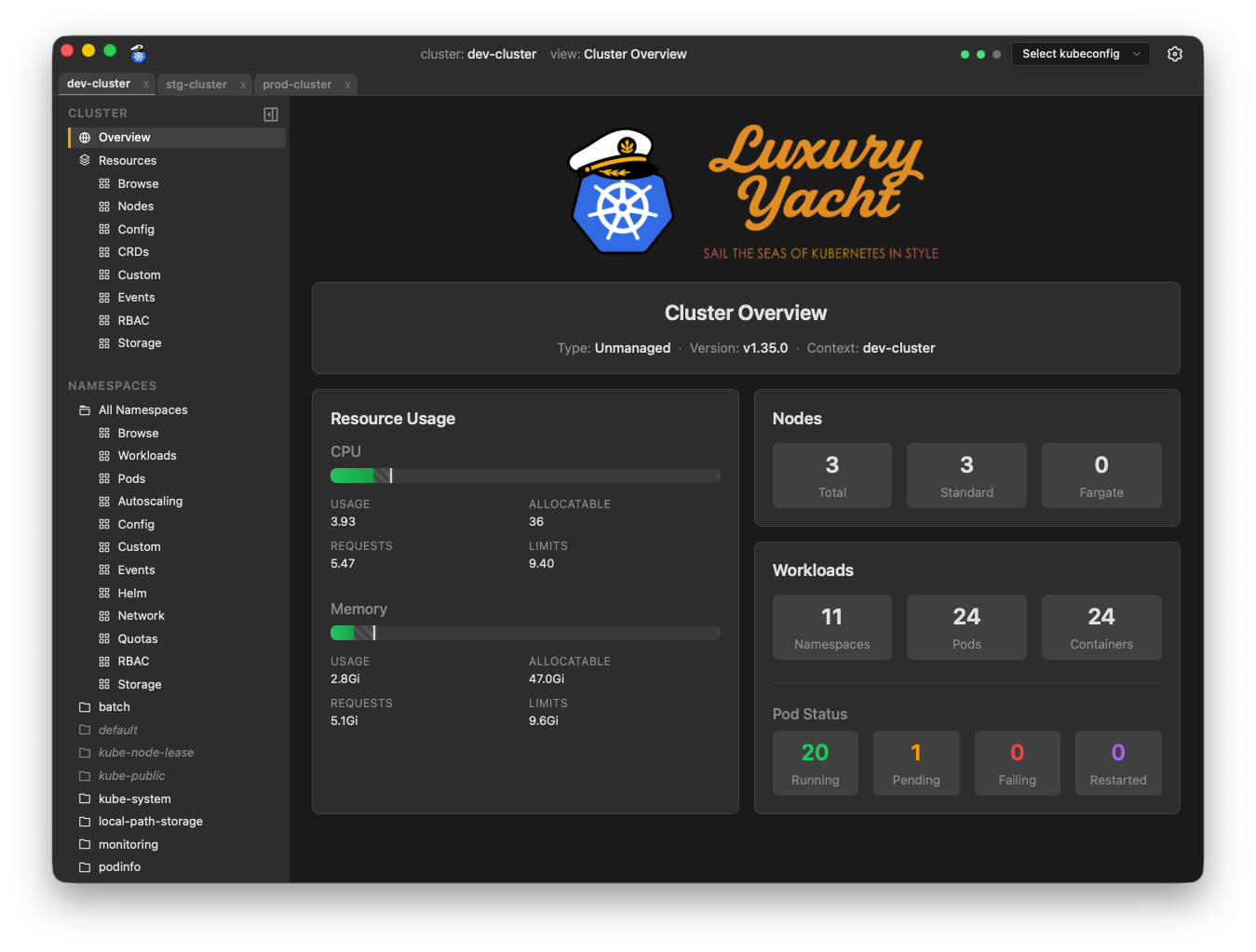
Cluster Overview Dashboard
Get a high-level view of your cluster's health at a glance.
- Resource utilization (CPU and memory)
- Node status and count
- Workload summary
- Pod status breakdown
Multi-Cluster Management
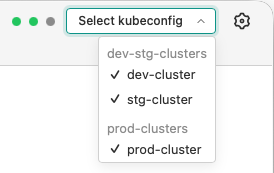
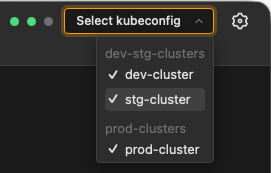
Manage all your Kubernetes clusters from a single application. Luxury Yacht automatically discovers kubeconfig files and lets you switch between clusters instantly.
- Automatic kubeconfig discovery
- Quick context switching via tabbed views
- Support for multiple kubeconfig file locations
- Cluster-scoped data isolation
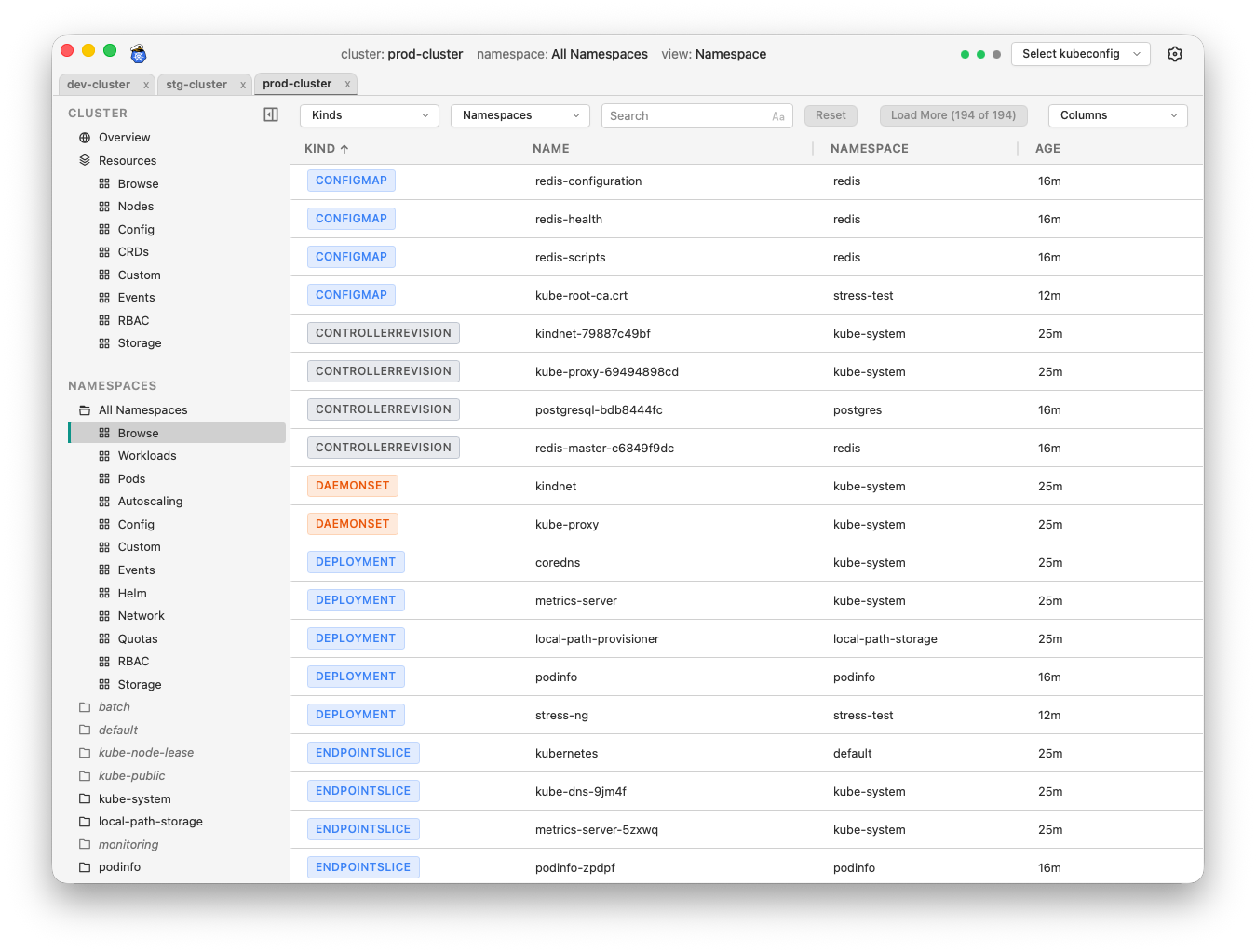
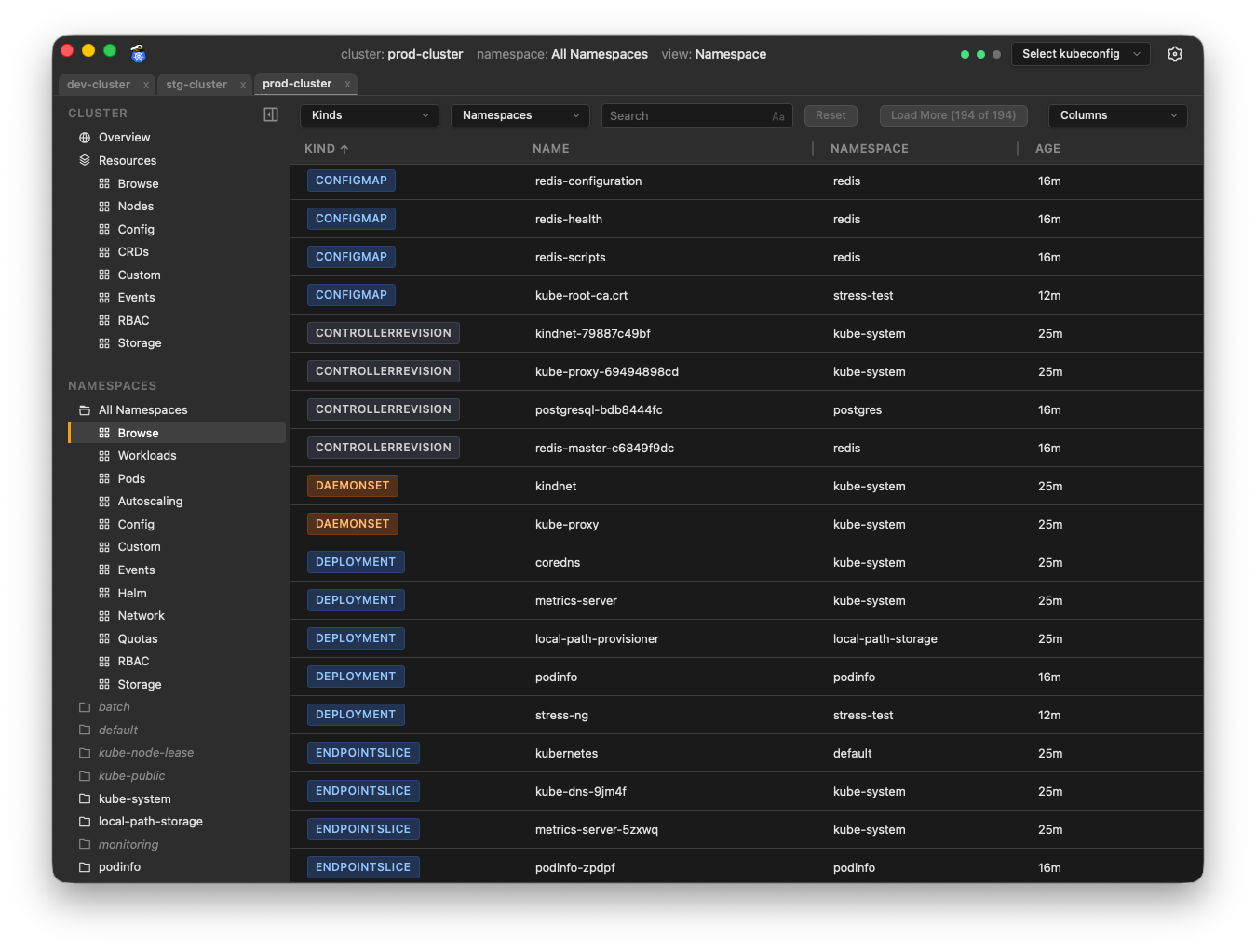
Resource Browsing
Browse all Kubernetes resources with powerful filtering, sorting, and search capabilities.
- All resource types: Pods, Deployments, Services, ConfigMaps, Secrets, and more
- Namespace filtering
- Column sorting
- Quick search within tables
Interactive Object Panel
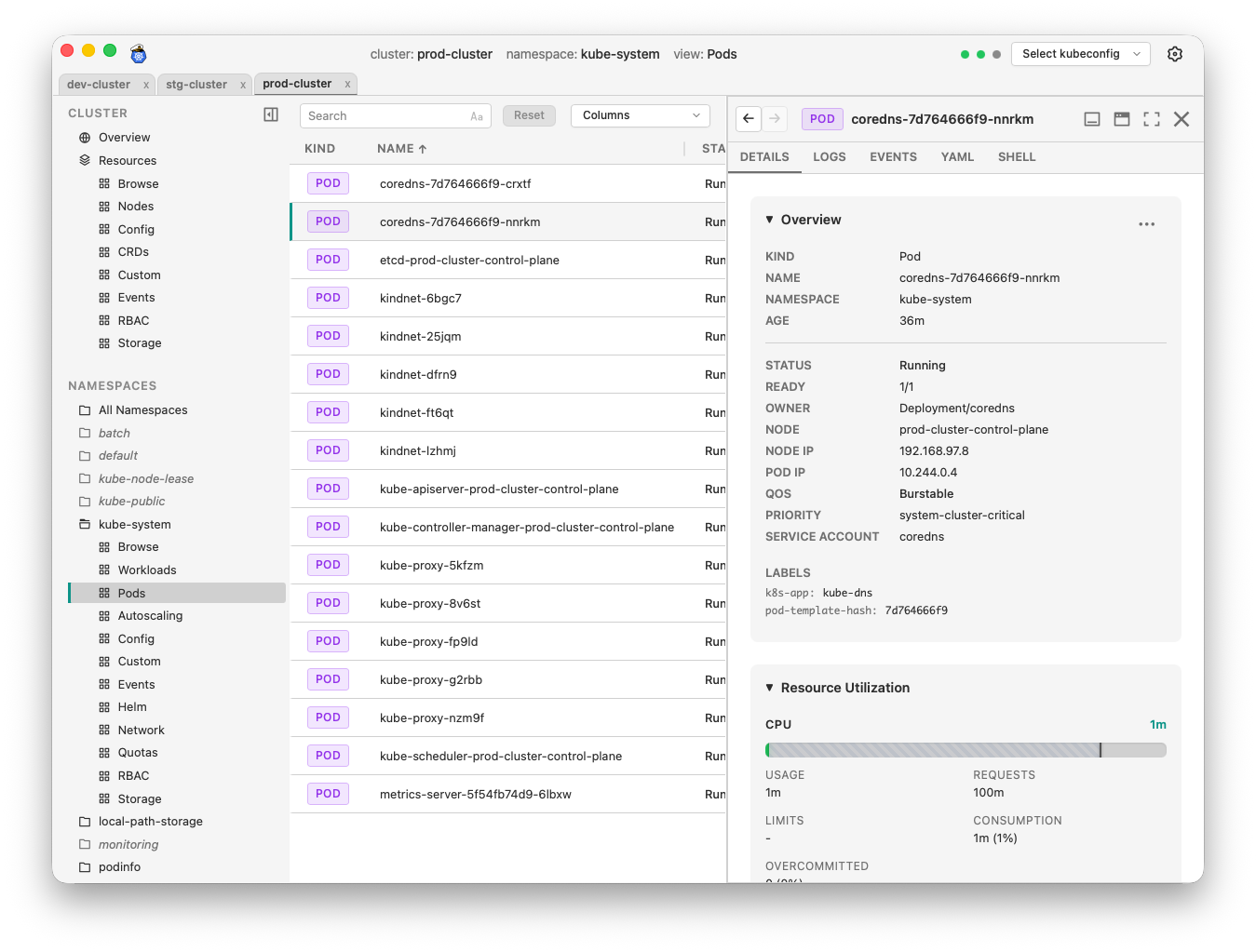
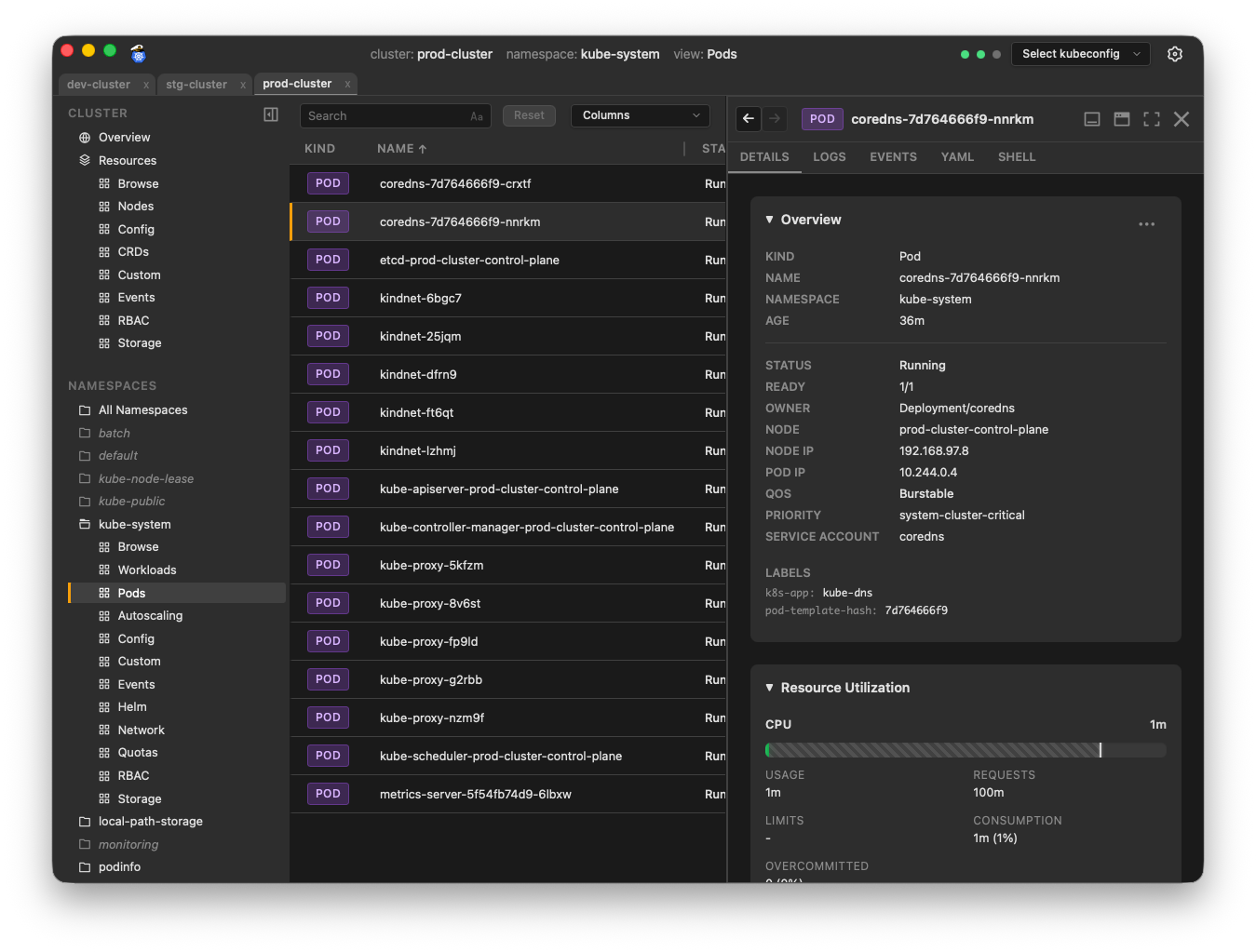
Dive deep into any Kubernetes object in the Object Panel. Dock it to the side, bottom, or float it as a separate window.
- Multiple tabs showing object details, events, YAML, logs, and more
- Flexible positioning: right, bottom, or floating
- Resize to your preference
- Access to common actions such as scale, restart, and delete
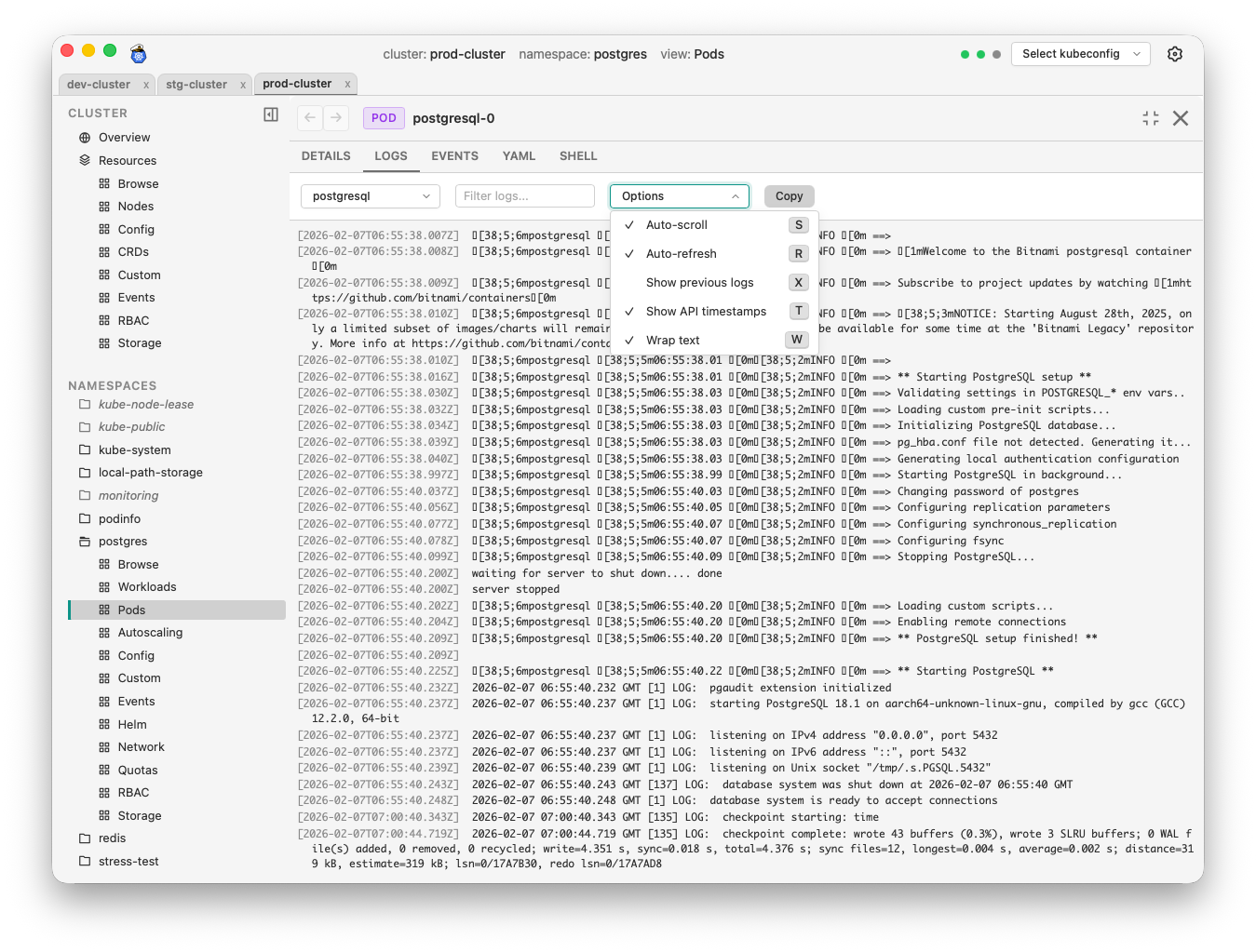
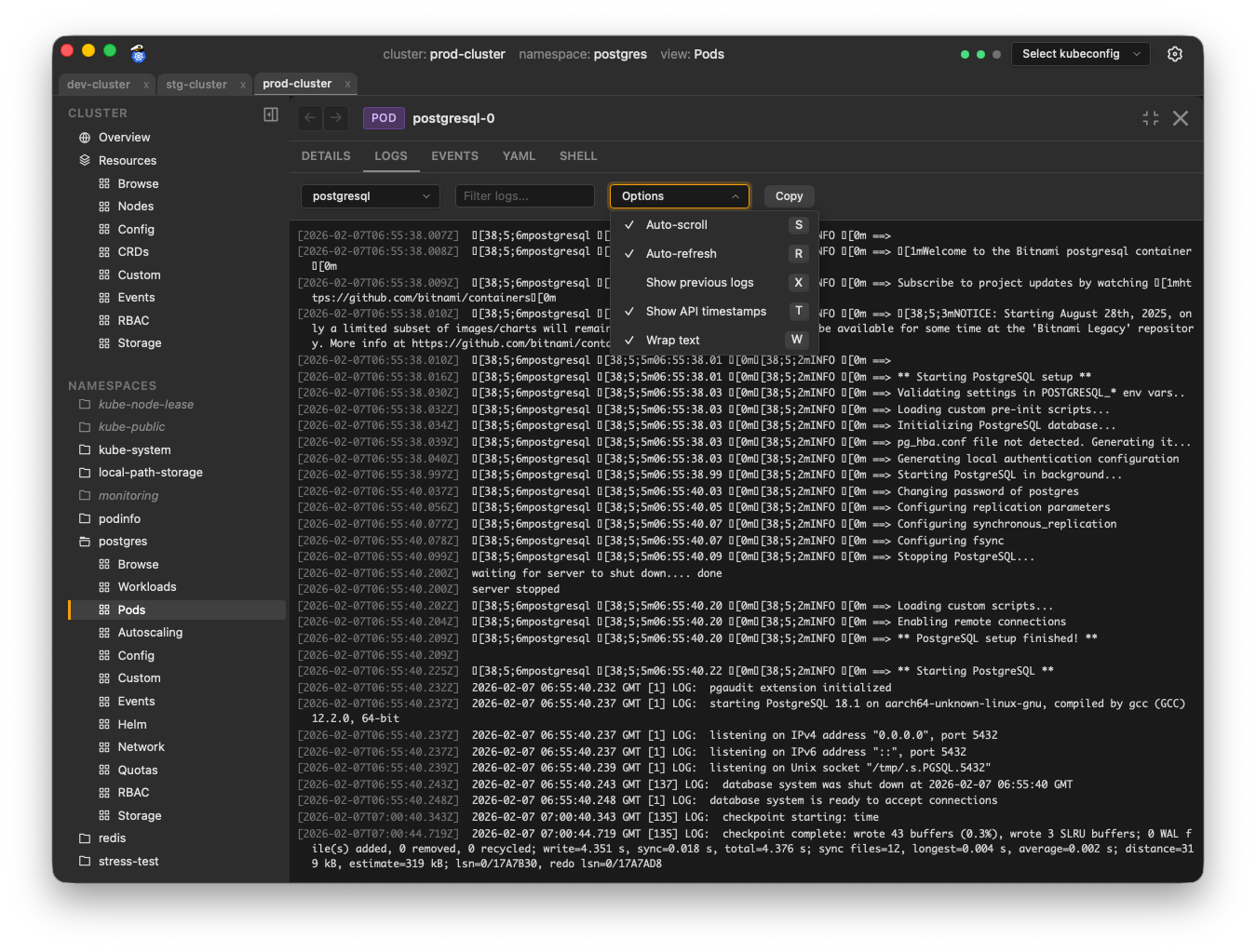
Advanced Log Viewer
A sophisticated log viewer that makes debugging a breeze. Aggregate logs from multiple pods and containers with powerful filtering.
- Aggregate logs from multiple pods
- Color-coded pods for easy identification
- Real-time streaming
- Search and filter
- JSON log parsing and formatting
- Previous container logs
Command Palette
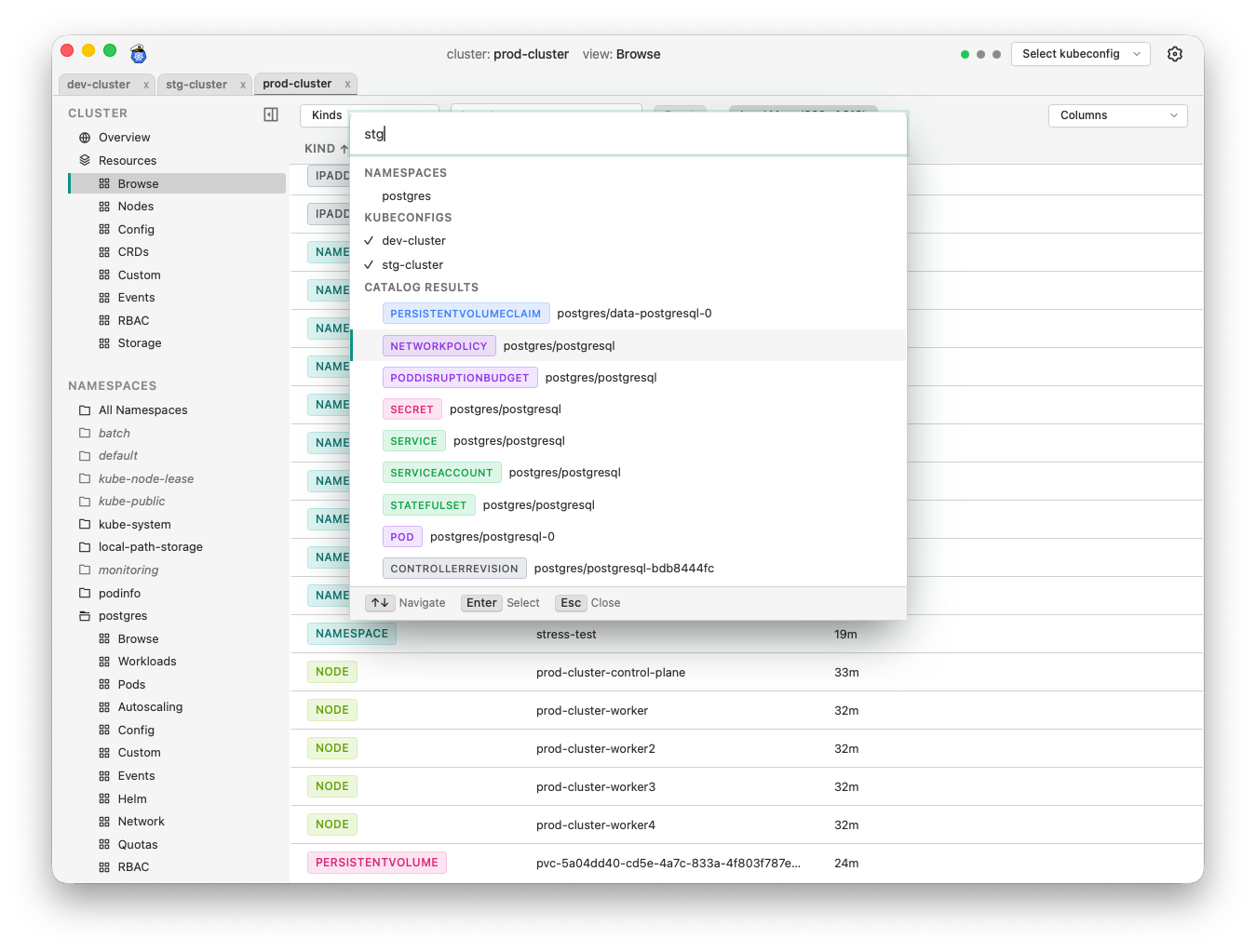
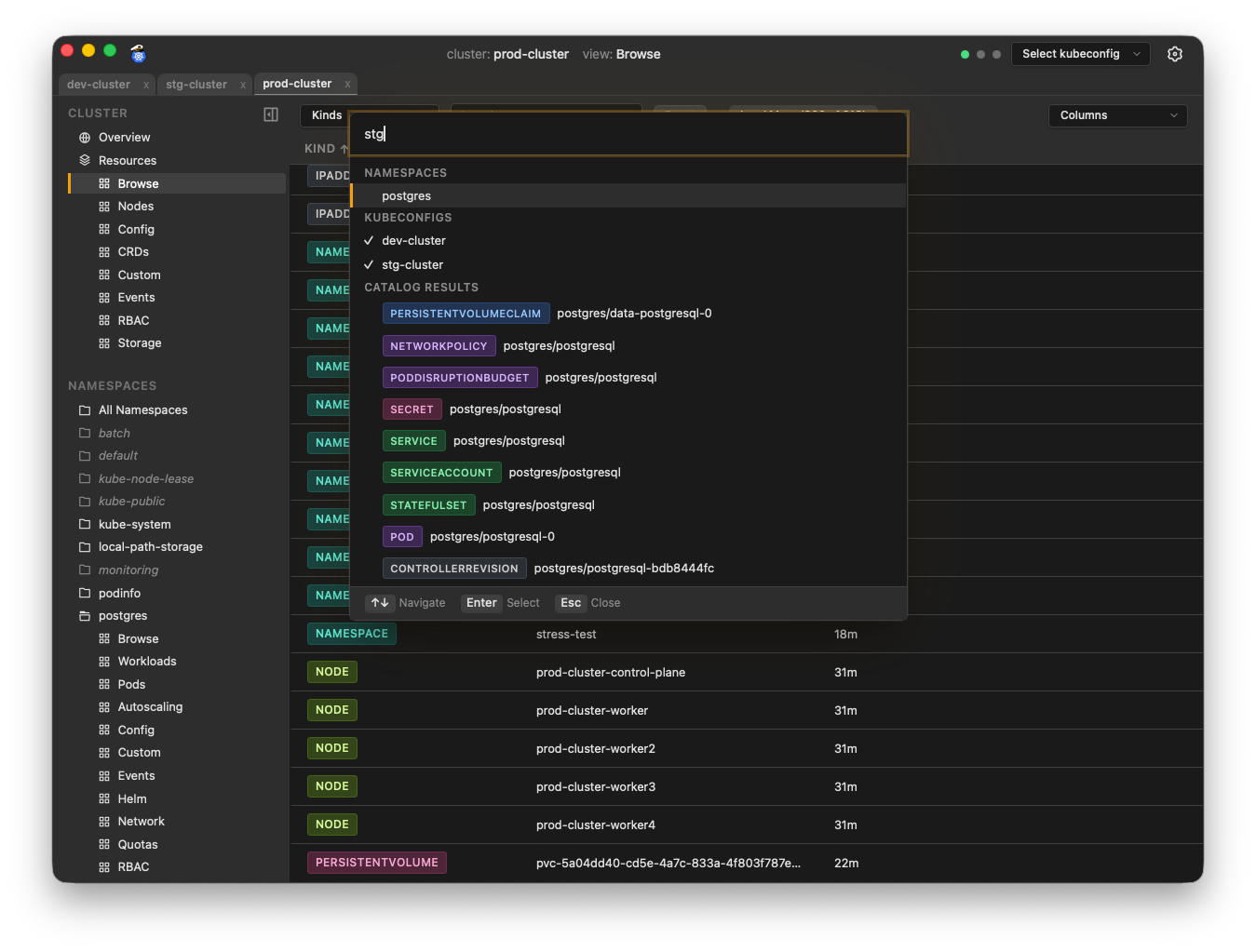
Navigate anywhere in the app with keyboard shortcuts. The command palette provides instant access to all resources and actions.
- Open with Shift + Cmd/Ctrl + P
- Fuzzy search across all resources
- Quick navigation to any page
- Search objects by name
- Keyboard-driven workflow
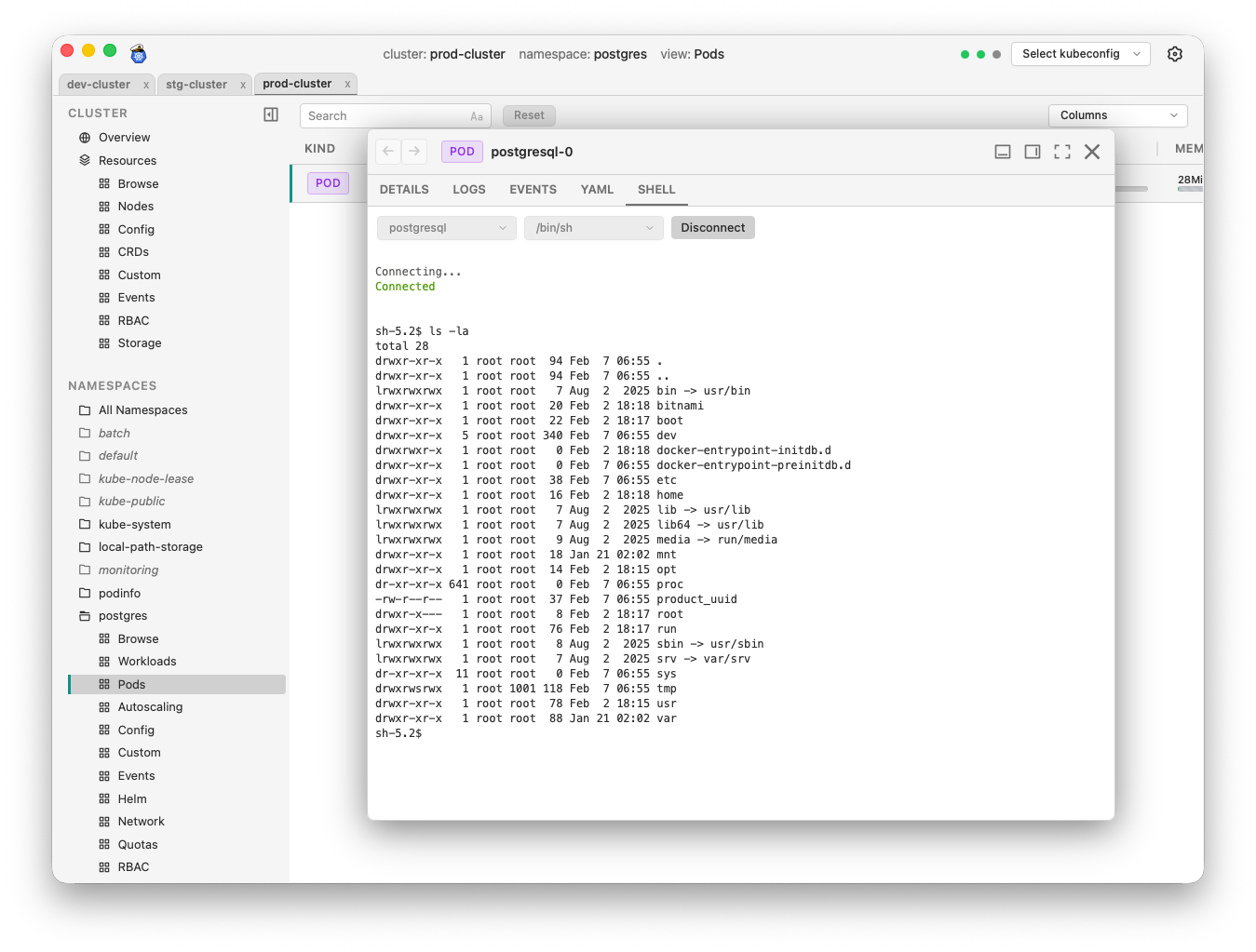
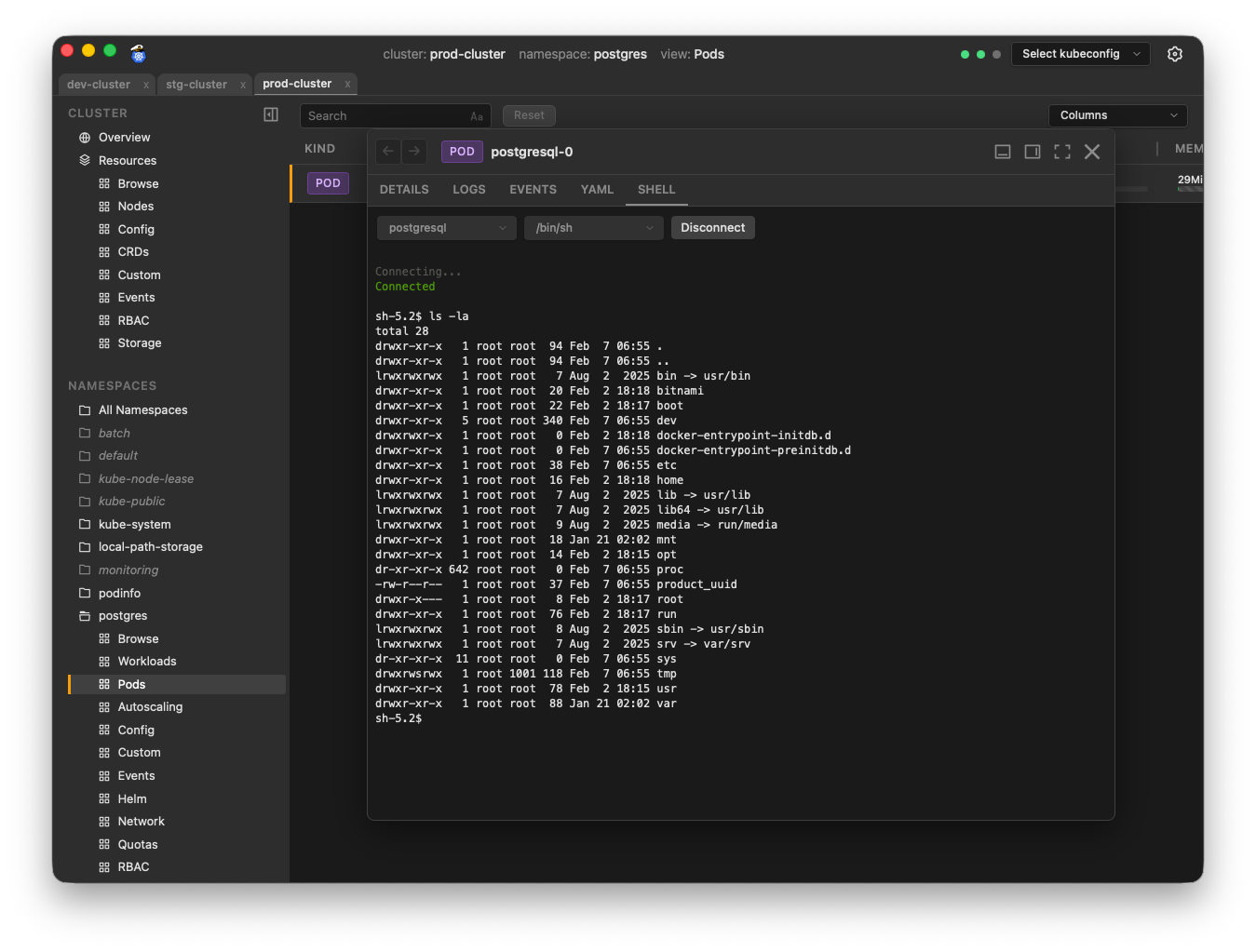
Shell Access
Open interactive terminal sessions in any container with shell support.
- Connect to any container in the pod that supports shell exec
- Choose
/bin/shor/bin/bash(must be available in the container)
YAML Editor
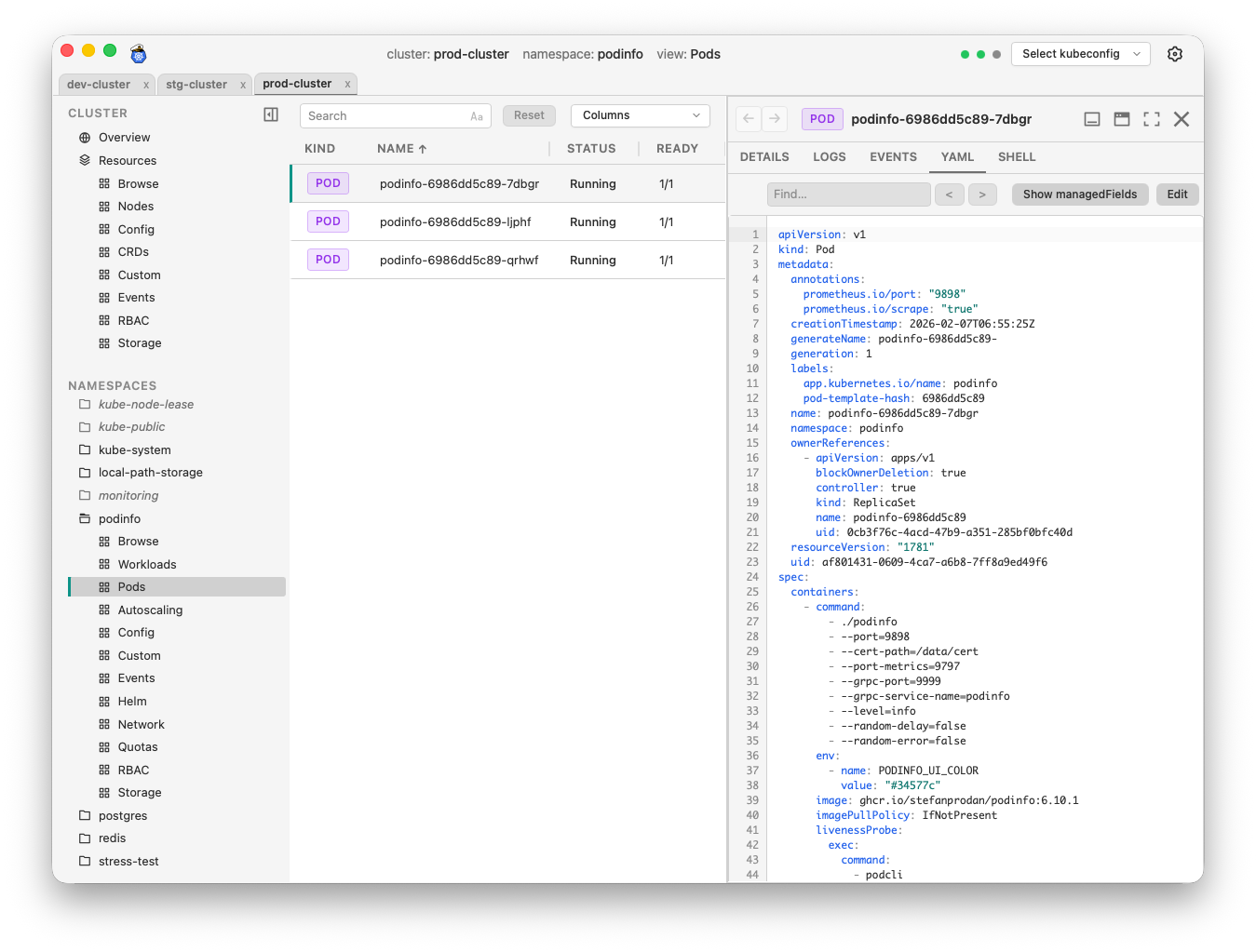
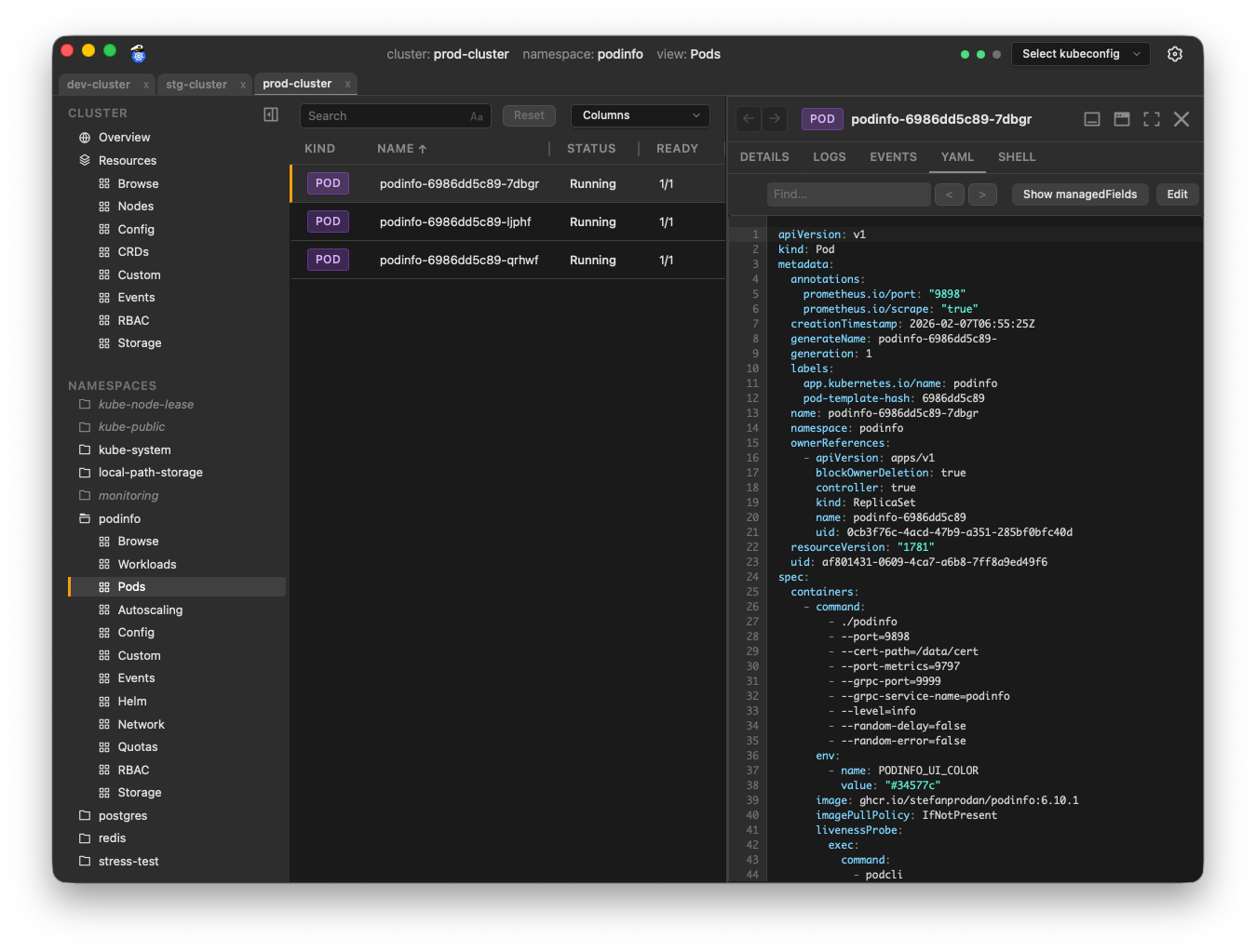
Edit Kubernetes object configurations.
- Apply changes to live objects directly from the app
managedFieldshidden by default to reduce complexity
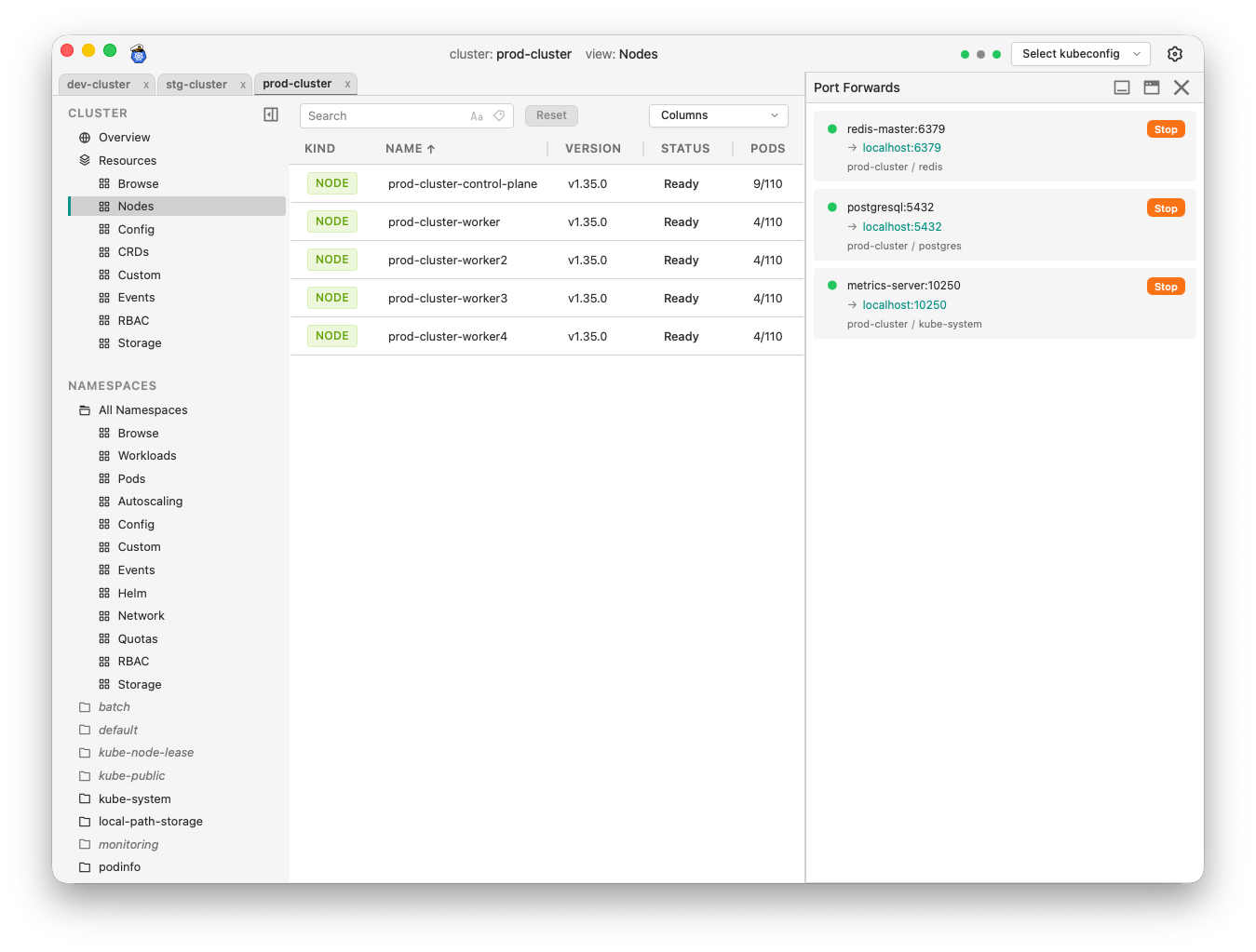
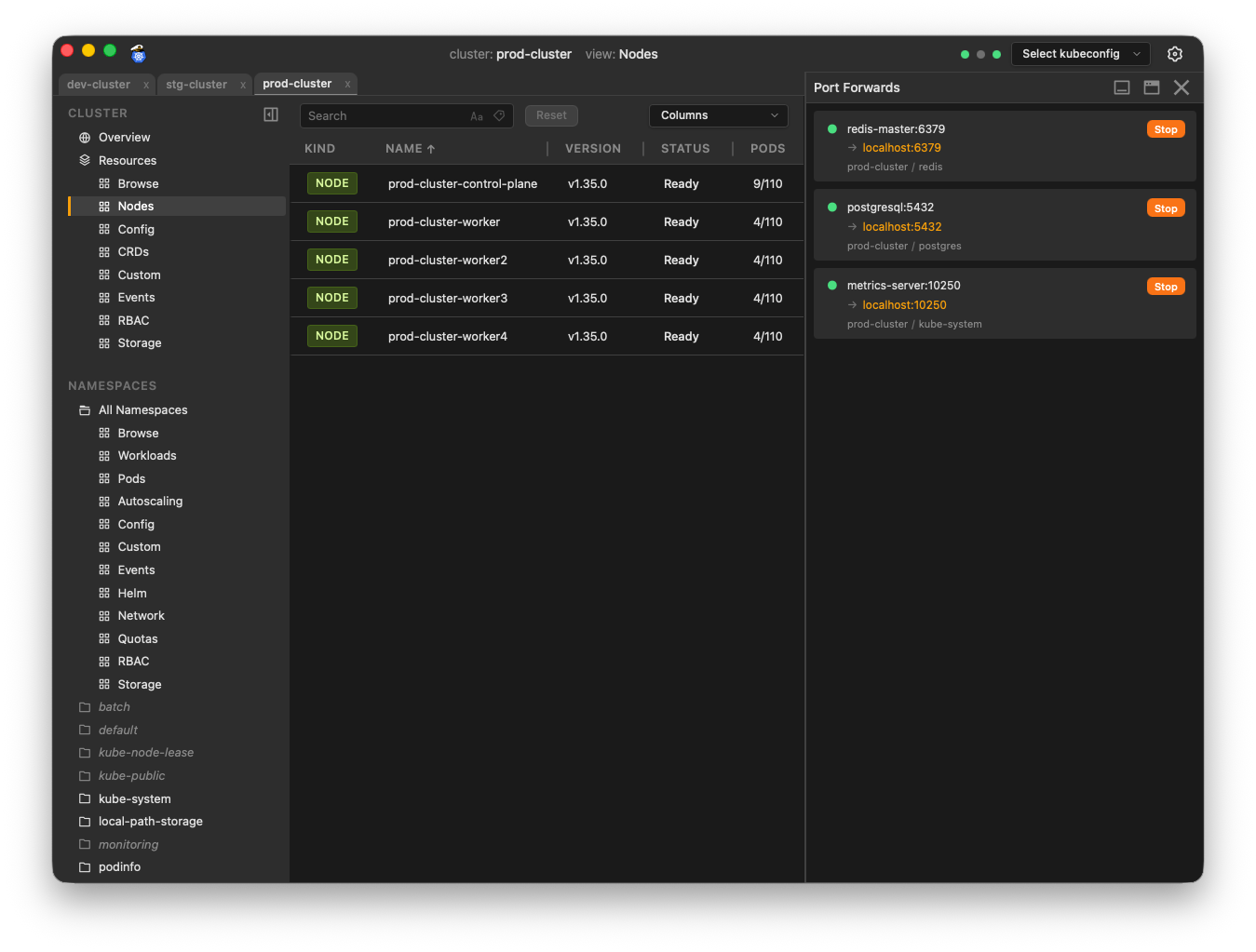
Port Forwarding
Easily create and manage port forwards from remote pods and services to your local machine.
- Right-click any supported object type to add a new port forward
- The object's available remote ports are auto-discovered
- Port Forwards panel tracks and manages multiple simulatenous port forwards
- Click the link in the panel to open the forwarded port in your local browser
Object Diff
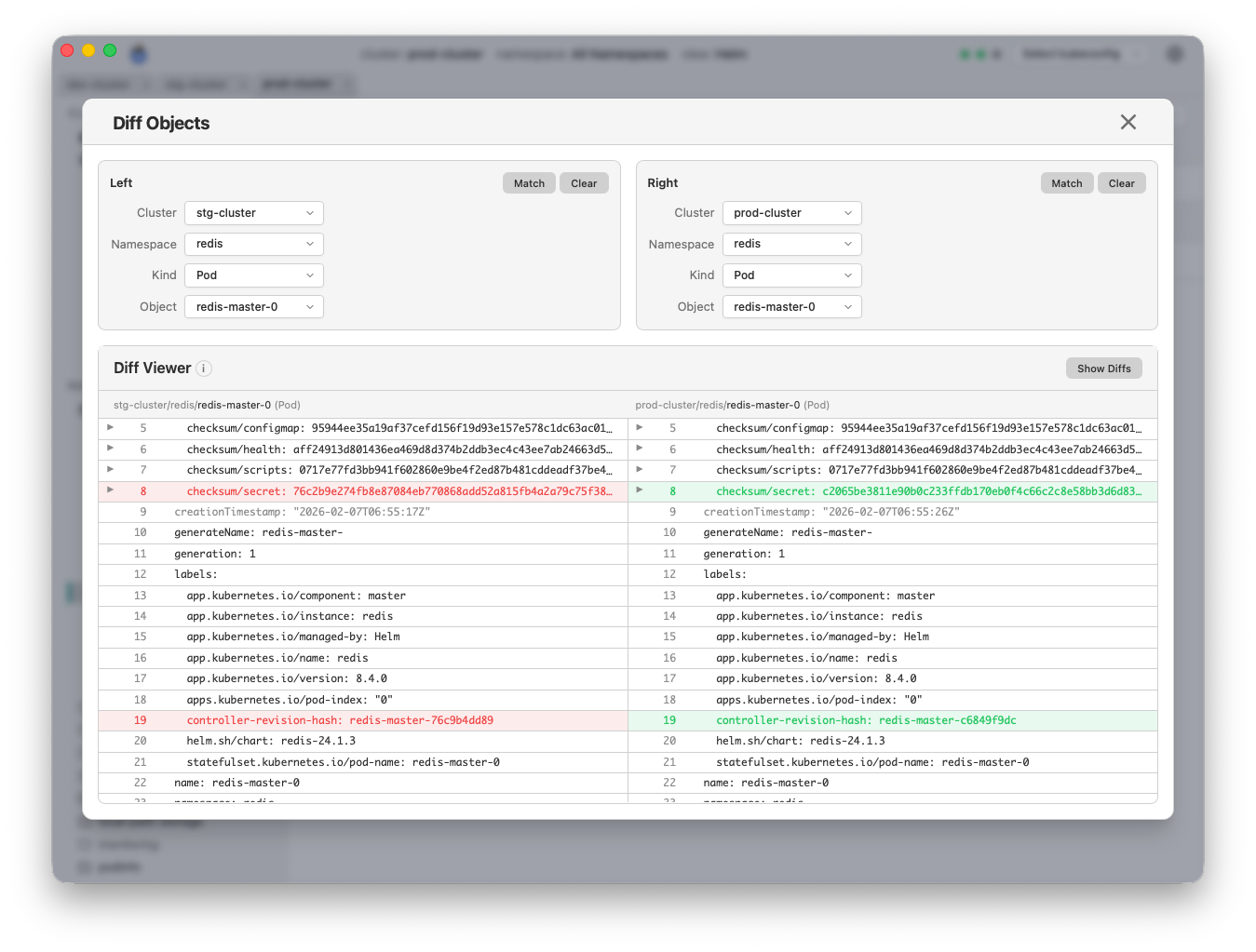
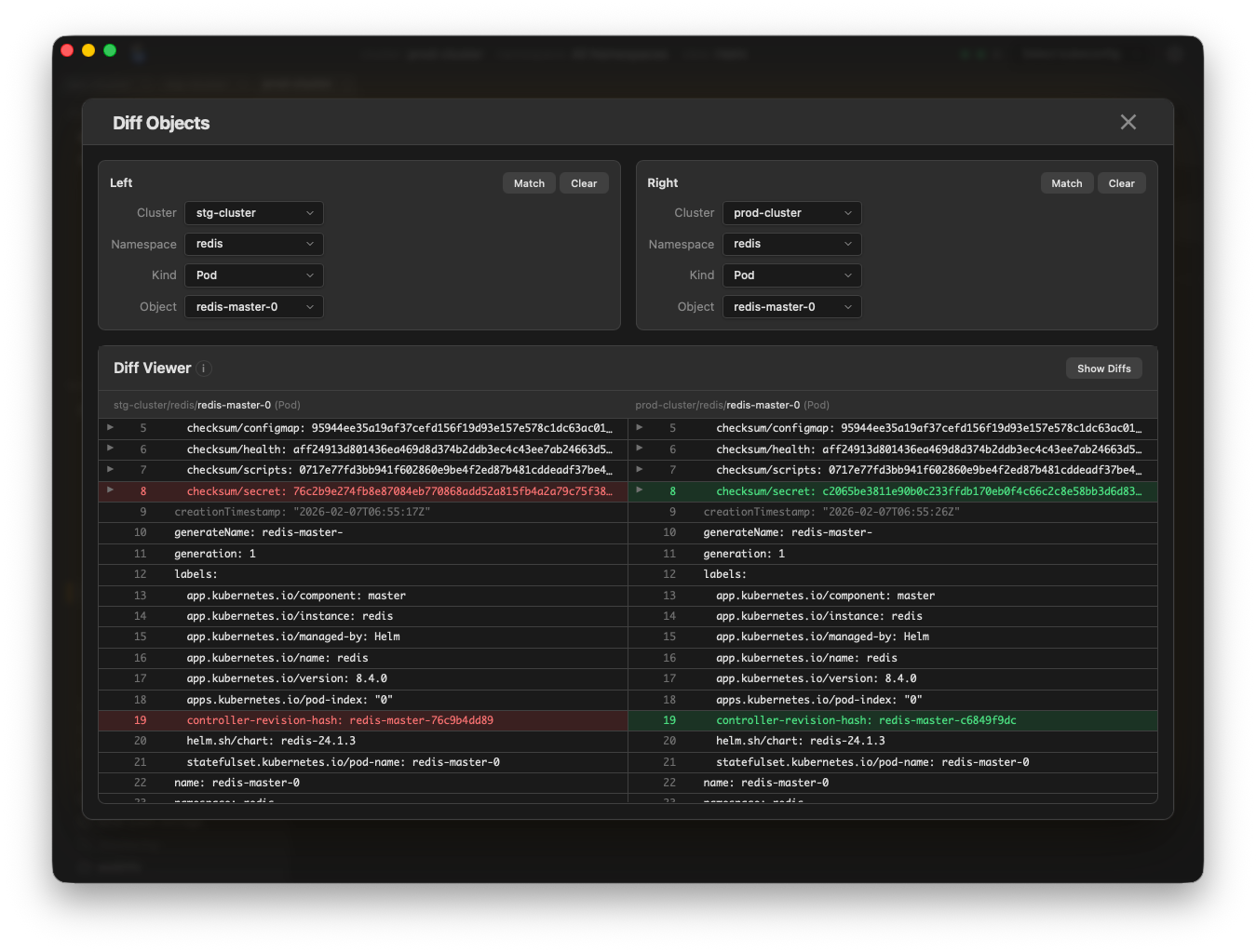
Diff objects, even across clusters.
- Compare objects in the same cluster, or in different clusters
- Uses familiar colors for identifying diffs
- Match button instantly finds matching objects across clusters
- View the entire objects or only view the diffs
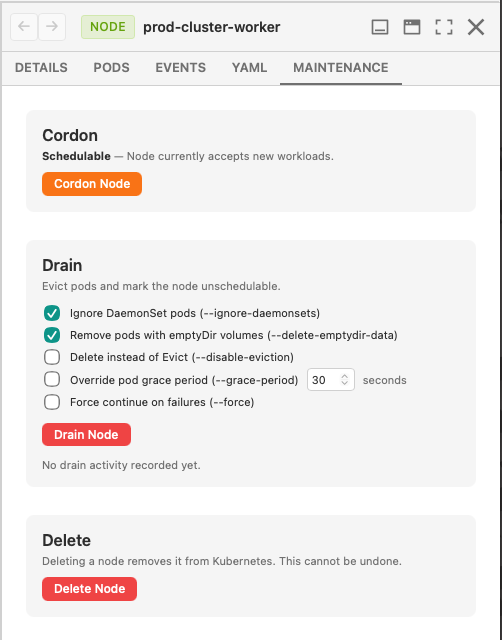
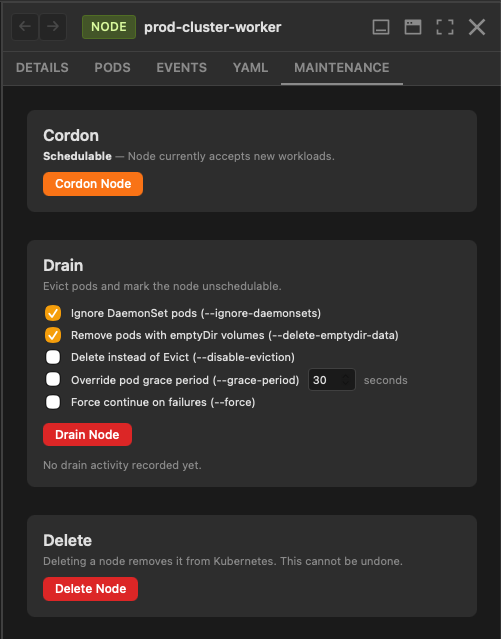
Node Management
Perform node maintenance operations from the UI.
- Quickly view node status and events
- Cordon, drain, and delete nodes
- Filter node views using label/annotation metadata
And More...
Real-time Updates
Live streaming of changes. Always see the current cluster state.
Keyboard Shortcuts
Navigate the app and manage resources with convenient keyboard shortcuts.
Helm Integration
Browse installed Helm releases. View Helm chart values and generated manifests.